Embedding Visitor Dialog
Introduction
Welcome to the Giosg visitor dialog embedding tutorial!
This guide will show you how to embed the Giosg visitor chat dialog directly into an element on your webpage, rather than having it appear as a floating window. This is useful when you want to integrate the chat experience seamlessly into your page layout, such as in a sidebar, footer, or dedicated chat section.
What is Dialog Embedding?
Dialog embedding allows you to display the Giosg visitor chat dialog inside a specific HTML element on your webpage. The embedded dialog provides the full chat functionality while appearing as a native part of your page design.
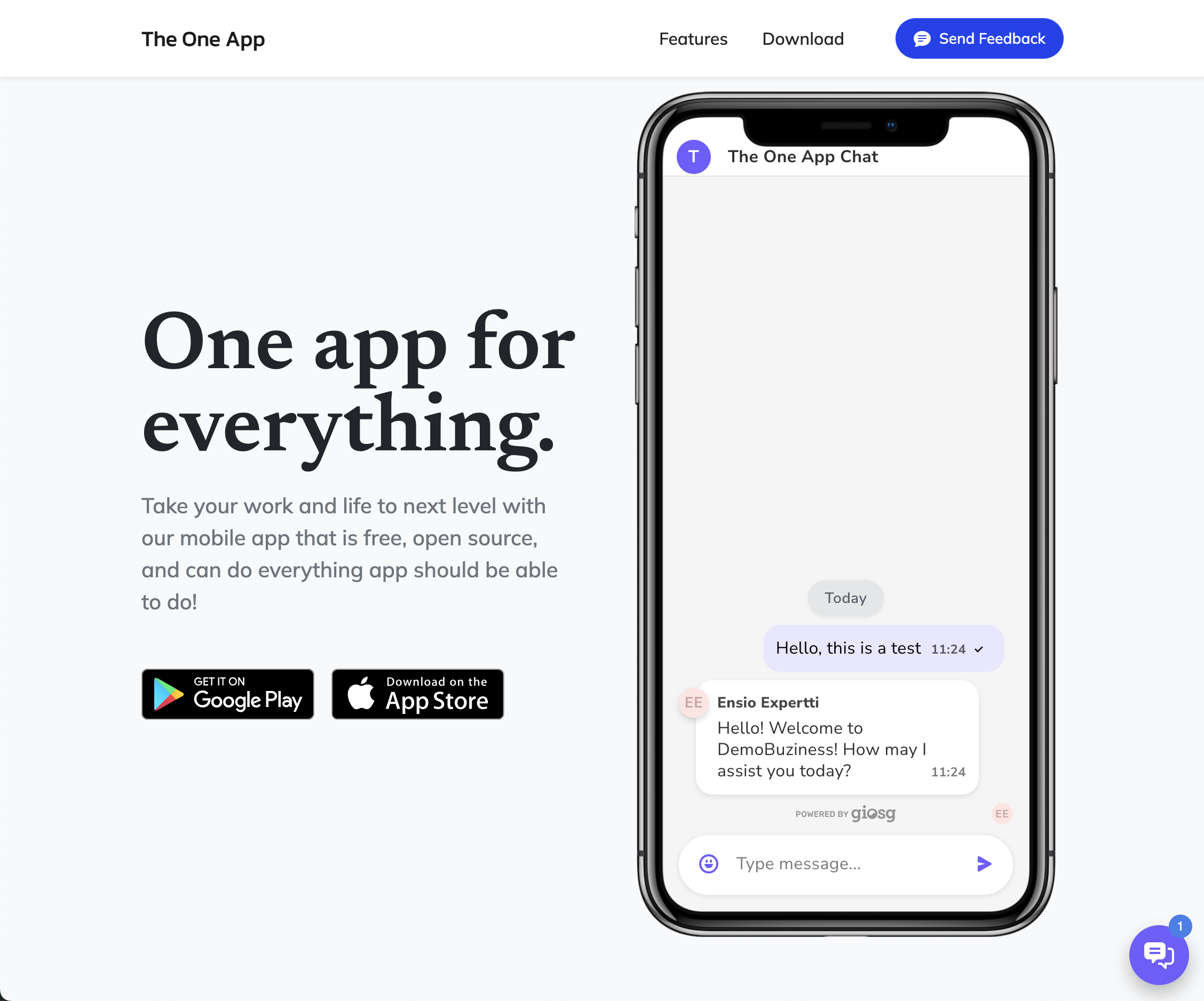
Key features:
- Full chat functionality within your page layout
- Dialog automatically uses all available space in the target element
- Can coexist with the floating dialog if desired
- Responsive to the target element's size
- Optional fixed room via the JavaScript API
- Optional case mode via the JavaScript API: show the conversation of an existing case, or let the visitor start a new case, optionally with a greeting message
Embedding Methods
There are two ways to embed the Giosg visitor dialog into your webpage:
Method 1: Automatic Embedding with CSS Class
The simplest way is to add a div element with the class name giosg-chat-embed-placeholder-v2 to your page. The Giosg script will automatically detect this element and embed the dialog into it.
1 2 3 4 5 6 7 8 9 10 11 12 13 14 15 16 17 18 19 20 21 22 23 24 25 26 27 28 29 | |
Note
Pinning the embedded dialog to a specific room or a case is only supported through the JavaScript API (Method 2). Method 1 does not support any options.
Method 2: JavaScript API
For more control over when and where the dialog is embedded, you can use the JavaScript API. This method is useful when you need to dynamically embed the dialog based on user actions or specific conditions.
1 2 3 4 5 6 7 8 9 10 11 12 13 14 15 16 17 18 19 20 21 22 23 24 25 26 27 28 29 30 31 32 33 34 35 36 | |
Important
Always wrap your giosg.embedDialog(...) call inside the _giosg() function. This ensures that the Giosg script has fully loaded before attempting to embed the dialog.
Embed options
embedDialog takes an options object. Only selector is required.
| Option | Type | Description |
|---|---|---|
selector |
string | Required. CSS selector of the element the dialog is embedded into. If several elements match, the first one is used. |
roomId |
UUID | Room the embedded dialog is forced to. If omitted, the dialog uses the room the visitor is currently in. |
caseId |
UUID or "new" |
Case UUID to show the conversation of an existing case, or "new" to let the visitor start a new case. If omitted, the dialog works as a normal chat. |
subject |
string | Subject for the case created in new case mode. Maximum length is 512 characters. |
autosuggestMessage |
string | Greeting shown to the visitor when the dialog opens. Only used with caseId: "new". See New case mode with an autosuggest message. |
autosuggestUserId |
UUID | User shown as the sender of autosuggestMessage. Requires autosuggestMessage. |
Embedding into a specific room
To force the embedded dialog to a specific room, pass roomId (replace the example UUID with your real room ID from Giosg):
1 2 3 4 5 6 | |
The older form with a selector and an optional room ID as separate arguments is still supported and works the same way:
1 2 3 | |
Case options are only available with the options object.
Calling embedDialog again
Each call recreates the embedded dialog in the target element. If roomId, caseId or subject is left out, the value from the previous call is used, so you can, for example, switch the dialog to another case by passing only the new caseId. The autosuggest options are not carried over to later calls.
Embedding a Dialog for Cases
If your organization uses case management, the embedded dialog can work with cases instead of normal chats. This suits pages such as a customer support portal, where each conversation should be tracked as a case and the visitor may come back to it later.
Embedding an existing case
Pass the case UUID as caseId to show the conversation of that case:
1 2 3 4 5 6 7 | |
In this mode:
- The dialog shows only the visitor's chat that belongs to the given case. The visitor's other chats are not shown.
- The case chat is shown even if it has already ended, so the visitor can read the conversation and continue it.
- If the visitor has no chat in the case yet, the visitor's first message starts a new chat that is linked to the case.
- The case must belong to your organization. You can get case IDs from the Cases API.
A visitor only sees the chats they have taken part in. Embedding a case does not show the visitor messages of the case that were sent in other visitors' chats.
Starting a new case
Pass "new" as caseId to let the visitor start a new case. Use subject to give the case a subject:
1 2 3 4 5 6 7 8 | |
In this mode:
- The dialog starts empty. The visitor's ongoing chats are not shown, so the conversation always starts a new case.
- The visitor's first message starts a new chat, and the case is created for it by your organization's case funnel. The case is only created if an enabled case funnel has start conditions that match the chat (for example, its room).
- After the case is created, the dialog stays on that case.
- If
subjectis given, it is used as the subject of the new case. Without it, the subject is set automatically.
New case mode with an autosuggest message
In new case mode you can show the visitor a greeting as soon as the dialog opens. The greeting appears as a message from an agent, so you can, for example, tell the visitor what to write or when to expect a reply.
1 2 3 4 5 6 7 8 9 10 11 | |
How the greeting works:
- The greeting is sent as an autosuggest message to the dialog's room when the dialog loads. It is sent even when the room is offline.
- The case is created when the visitor replies to the greeting, not when the greeting is shown.
- If
autosuggestUserIdis omitted, an agent of the room is shown as the sender. Agents who are online are preferred. - Messages longer than 1000 characters are cut to 1000 characters.
- The greeting is not sent if the visitor already has an open chat without a case in the same room.
Note
autosuggestMessage is only used together with caseId: "new", and autosuggestUserId only together with autosuggestMessage. Otherwise these options are ignored and a warning is written to the browser console.
Controlling Dialog Size
The embedded dialog will automatically fill all available space in its container element. You can control the size and appearance of the dialog by styling the target element.
Fixed Size Example
1 2 3 4 5 6 7 8 9 10 11 | |
Responsive Example
1 2 3 4 5 6 7 8 9 10 11 12 13 14 15 16 | |
Full Height Example
1 2 3 4 5 6 7 8 9 10 11 12 | |
Using Multiple Dialogs
You can have both the embedded dialog and the floating dialog open simultaneously on your website. This can be useful for providing multiple chat access points for your visitors.
With this setup:
- The embedded chat dialog appears within the page content
- The floating chat button remains available in the corner
- Visitors can use either interface based on their preference
Best Practices
-
Set explicit dimensions: Always define width and height for your container element to ensure proper display.
-
Use the
_giosg()wrapper: When using the JavaScript API, always wrap your code in the_giosg()function to ensure the script is loaded. -
Consider mobile responsiveness: Use responsive CSS units and media queries to ensure the embedded dialog works well on all devices.
-
Test visibility: Ensure your container element is visible and properly positioned in your layout.
-
Avoid z-index conflicts: If using fixed or absolute positioning, ensure your z-index values don't conflict with other page elements.
-
Room targeting: Pass
roomIdtoembedDialogwhen the embed must always use a specific room; omit it when the embed should follow the visitor’s current room. Remember that fixed-room embedding is only available via the JavaScript API, not Method 1. -
Pin the room in case mode: When using
caseId, also passroomId, so that new case chats and greetings always go to the room your case funnel is set up for.
Troubleshooting
Dialog Not Appearing
- Check that the Giosg script is loading correctly
- Verify your container element exists in the DOM before calling the embed function
- Verify your container element has explicit dimensions (width and height)
- Ensure the container element is visible (not
display: noneorvisibility: hidden) - Check browser console for any JavaScript errors
Consent management
When the Giosg dialog is embedded directly into a page, the chat is no longer an external, standalone service that the visitor navigates to — it is a functional, integral part of the page itself. This distinction matters for cookie and consent handling.
Why cookies can be enabled on the embedding page
Regulatory guidance (for example, the Finnish Transport and Communications Agency Traficom's interpretation of the ePrivacy rules) treats external chat widgets as third-party services that typically require explicit consent before any non-essential cookies may be set. An embedded dialog is different: because the chat has been intentionally integrated into the page as part of its primary functionality, the cookies required to make that chat work are considered necessary for the service the visitor has come to use on that page.
In practice this means that on a page where the Giosg dialog is embedded as a core feature of the page, it is permissible to allow the cookies that the chat needs in order to function, even before a general site-wide consent for giosg has been given. The visitor is using the chat as the purpose of the page, so the cookies supporting that chat are tied to a service the visitor has actively engaged with.
Important
This reasoning applies only when the embedded dialog is genuinely an integral part of the page's purpose (for example, a dedicated support page or a product search-/recommendation page). If the chat is merely a floating widget added on top of unrelated content, the standard external-chat consent rules still apply. Traficom's current guidance does not explicitly cover this use case, as embedding the chat as an integral part of a page is a newer pattern that emerged after the guidance was written.
Enabling consent for the embedding page
Consent management for Giosg follows the mechanism documented in Transparency & Consent. Two scenarios are common:
-
Site-level consent is already granted. If the visitor has already given consent for Giosg cookies through your site's consent management platform, no additional action is needed — the embedded dialog will work as usual.
-
Site-level consent is not granted (or not applicable). If Giosg consents have not been given at the site level, you should enable them specifically for the page that hosts the embedded dialog. Because the embedded chat is essential to that page's function, it is acceptable to grant the required Giosg consent on this page even if the rest of the site withholds it by default.
What happens without consent
If consent is not granted, the embedded chat can still be opened and used, but it falls back to using a temporary visitor ID. This has a visible side effect: because the visitor ID is not persisted between page loads, each page load creates a new identity, and any ongoing chat conversation is lost as soon as the visitor navigates or reloads the page.
For the embedded chat to retain its conversation across page loads, the Giosg consent must be granted so that the visitor ID can be stored.
Setting the consent alongside the embed
Granting the required consent does not have to be done through the site's main consent management platform. The same rule that enables the embedded chat on a page can also set the giosg consent for that page. This means you can ship the embedded chat without any changes to the existing site-wide consent management — the consent needed for the embed is configured together with the embed itself.
Follow the API described in the Transparency & Consent documentation to signal consent for Giosg on pages where the dialog is embedded.