Email integration in new giosg
In new giosg, organization mailboxes are configured in the web app under Settings → Mailboxes. You can connect Gmail or Microsoft Outlook using OAuth (Connect mailbox), or fill in Mailbox details manually (mailbox name, mailbox URI, from address) when automatic connection is not used.
Microsoft Outlook: administrator consent (required)
Warning
Before any user in your Microsoft 365 / Entra ID organization can complete the Outlook connection, a directory administrator must grant admin consent for the Giosg email integration application. Without this step, the Microsoft OAuth sign-in flow will not work for your tenant.
- An administrator opens the admin consent URL: Grant admin consent for Giosg email integration.
- They sign in with an admin account and accept the permissions for the organization.
This adds the Giosg email integration Entra ID (Azure AD) enterprise application to your organization and allows the OAuth flow used by Connect mailbox → Outlook to succeed.
Connecting a mailbox
Open Mailboxes
In Settings, choose Mailboxes. If no mailboxes exist yet, click Add mailbox.
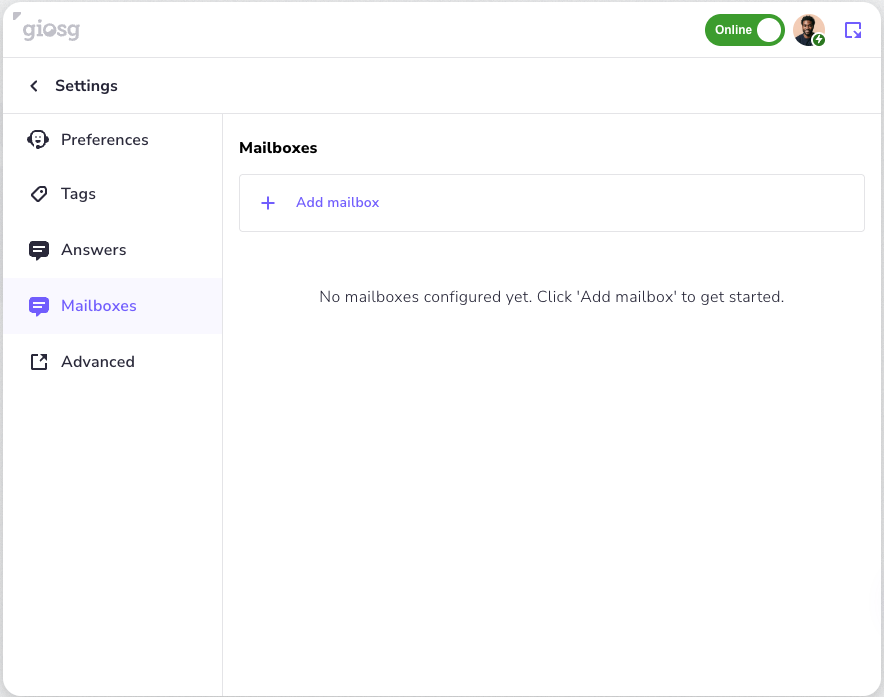
Add mailbox
On the Add mailbox screen, use Connect mailbox to sign in with Gmail or Outlook and let giosg configure the mailbox automatically. Alternatively, use the Mailbox details fields for manual setup.
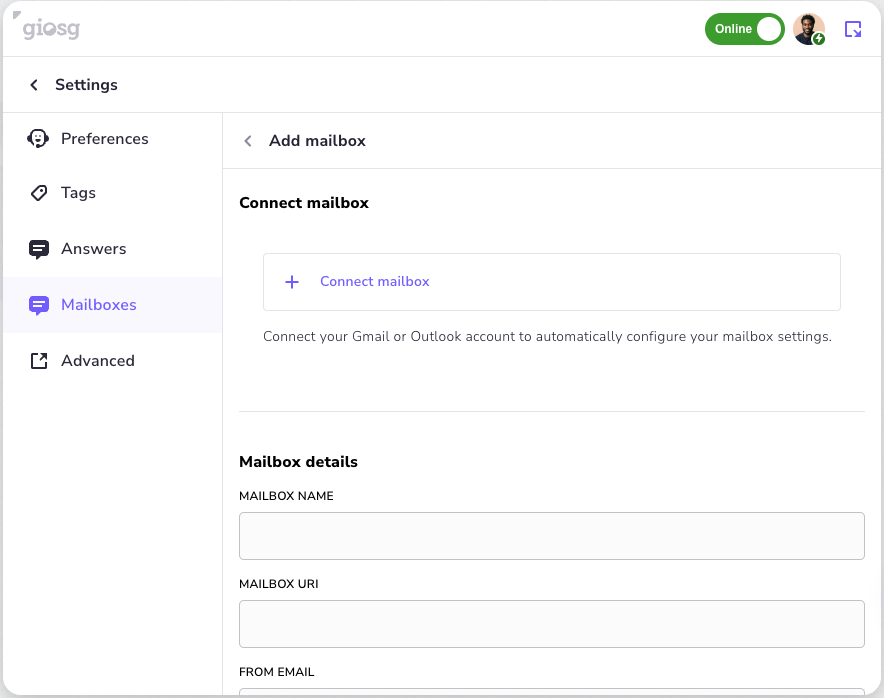
Choose provider (OAuth)
After Connect mailbox, pick Gmail or Outlook when prompted.
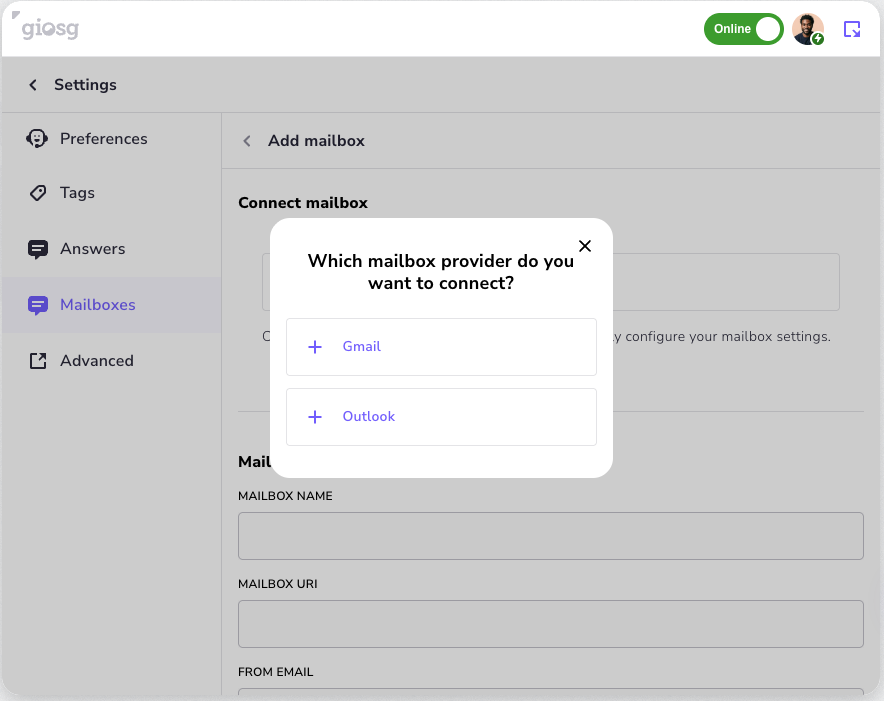
Sign in with the provider
A separate window opens for Google or Microsoft sign-in. While the connection is established, the Connect Mailbox button on the Add mailbox screen is disabled. The button is enabled back when the ongoing connection window is closed.
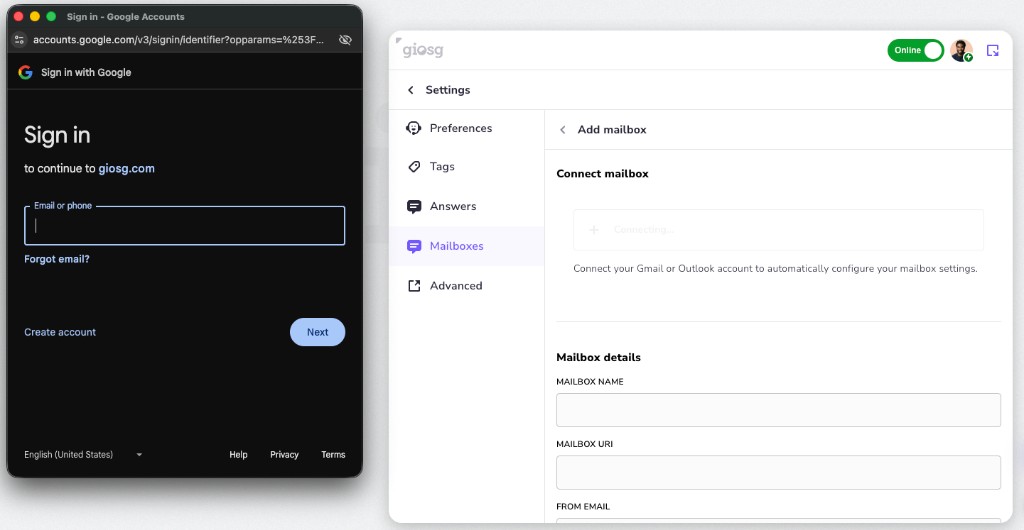
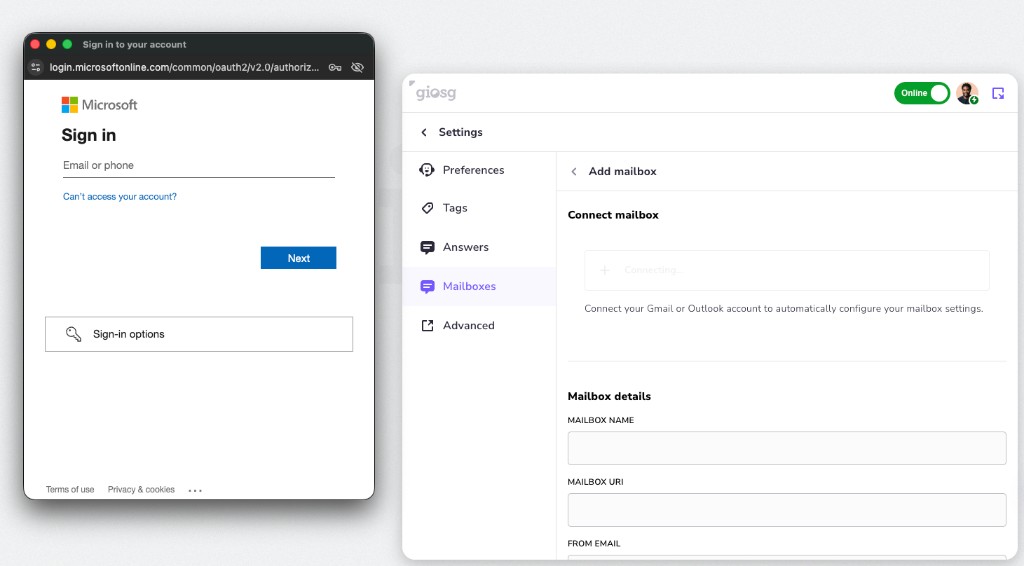
Complete the steps in the provider window. After a successful connection, the mailbox appears according to your giosg configuration.